
4.7 Sampler Mode
4.7 Sampler Mode
Sampler Mode determines the operating workflow used by SmartSampler2 and controls which configuration sections and module controls SmartConfig2 displays. The mode selector is available under Basics > Home.
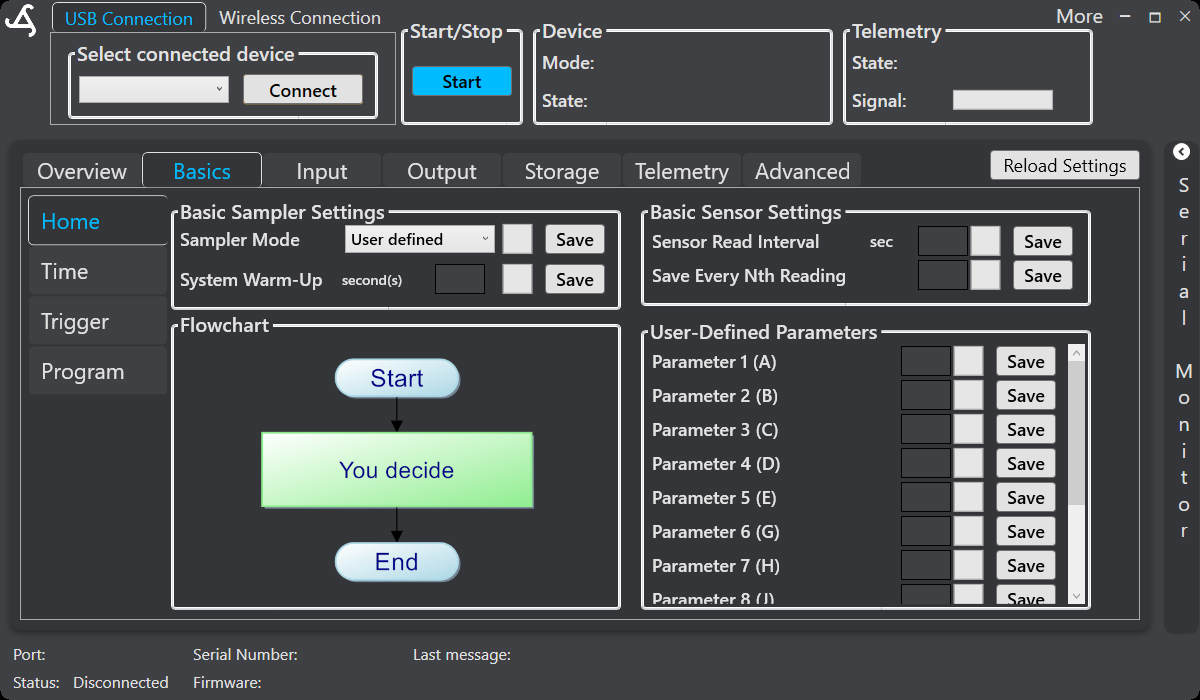
Available modes
The current SmartConfig2 interface provides these modes:
- User defined – Configure a user-defined program in the Program area. The Home page displays the corresponding flowchart and user-defined parameters.
- AquaMate – Configure the AquaMate sampling workflow and its supported module controls.
- TreeFlux – Configure the TreeFlux workflow and its supported settings and module controls.
SmartConfig2 hides or displays mode-specific settings according to the selected mode and the features activated on the connected SmartSampler2. Do not assume that a control is available if it is not shown in the interface.
Select and save a mode
- Connect to SmartSampler2 using USB or a supported wireless connection.
- Allow SmartConfig2 to load the device configuration automatically.
- Open Basics > Home.
- Select User defined, AquaMate, or TreeFlux from Sampler Mode.
- Review the configuration sections and module controls that appear.
- Select the mode's Save button, then configure and save the displayed settings.
Changing the mode can change the active module configuration and input-port requirements. If a required feature is unavailable, SmartConfig2 may report the condition or omit the related controls. Review the applicable input, output, and module configuration before starting operation.
Startup and operating state
The System Warm-Up value on Basics > Home defines the startup warm-up period. This period allows the system and telemetry to initialize before the actual program begins. Sensors are usually not switched on during this startup warm-up. The warm-up countdown completes before sampling or the selected operating program starts.
For scheduled operation, SmartSampler2 calculates the next sampling time from the configured sampling interval. When low-power operation is enabled, it can enter deep sleep until the next scheduled wake-up; otherwise it remains active while waiting.
After saving the mode and starting operation, review the device state on the Home area or in Serial Monitor. Depending on the operating stage, SmartConfig2 can show states such as Ready, Running, Running: Warming up, or Stopped. The monitor can also show current activity, progress, and responses from connected modules.
Before deployment
- Confirm that the intended mode is selected and saved.
- Review the mode-specific settings and enabled modules.
- Verify sensor, module, and interface power behavior in Advanced Settings.
- Confirm that the required interfaces and modules are available under Input.
- Save or export the configuration for your records.
- Confirm the SmartSampler2 operating state before disconnecting SmartConfig2.
For mode-specific workflows, see Sampler Modes, User defined, AquaMate, and TreeFlux.
Related hardware: SmartSampler2 hardware reference.