
5.1.16 Formulas
Purpose: Use a User-defined Formula action to calculate a value from the latest comma-separated sensor data and supported runtime values.
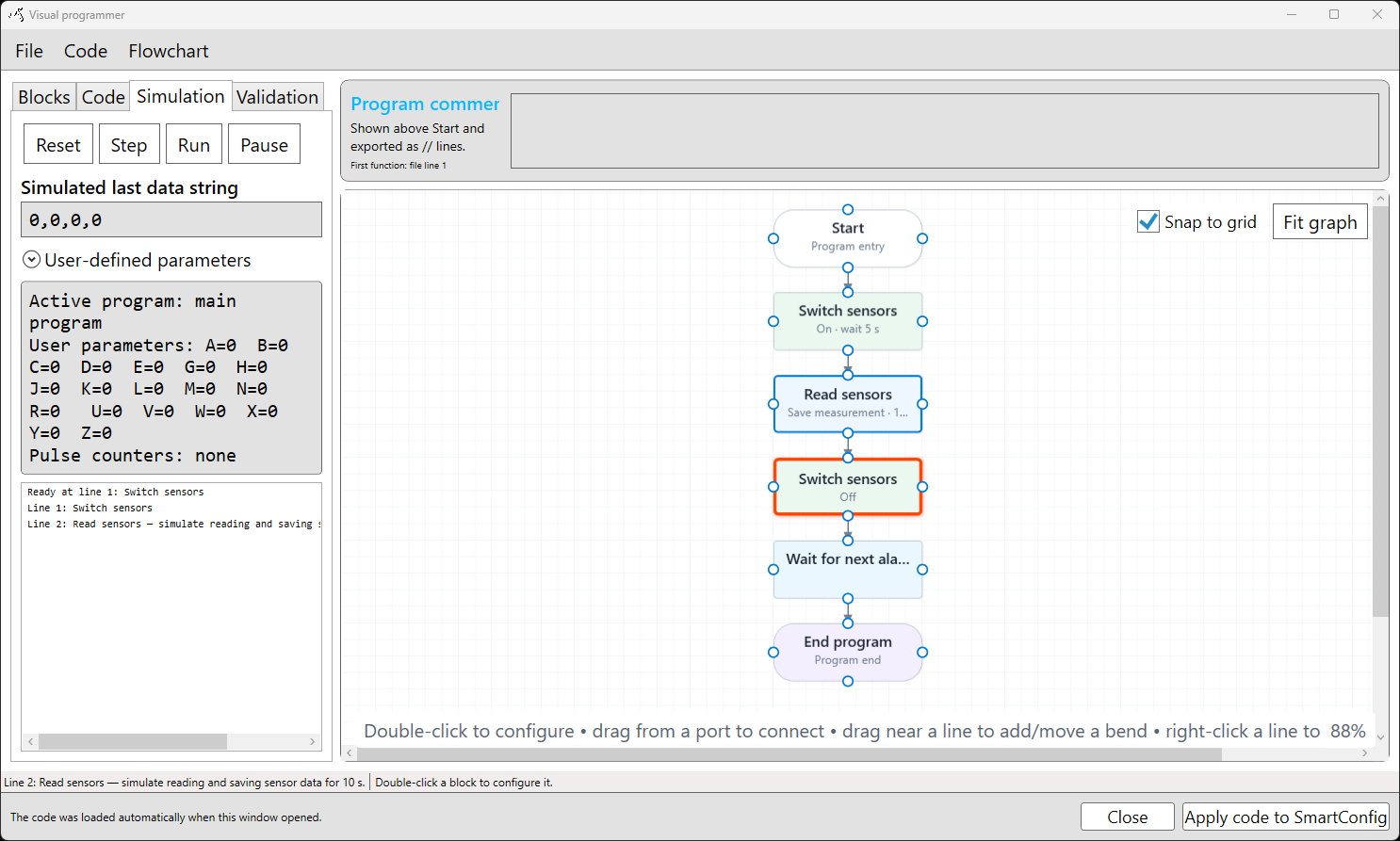
A formula can use up to four selected data fields, represented in the editor as a, b, c, and d. It can also use supported user-defined parameters, temporary values, pulse counters, and the previous formula result. The calculated result is shown as r and can be used by later supported actions, such as a delay, output action, comparison, or flow-control action.
Typical workflow
- Open the Visual Programmer and add or select Calculate formula.
- Enter one supported mathematical expression.
- Assign a data position to each required input. Use
0for an unused input. - Enter representative comma-separated data in the test area.
- Select Test formula to review the resolved inputs and result.
- Correct any formula or position errors, then select OK.
- Use the Simulation tab to check how the result affects later actions.
- Validate the complete program before applying it to SmartSampler2.
SmartConfig2 reports an error position and explanatory message when it cannot interpret an expression. A successful test displays the expression, supplied data, resolved inputs, and calculated result. Formula input is a single expression; commas are separators for the data fields and must not be used to separate parts of the expression.
When a selected input position is outside the available data, SmartSampler2 uses zero for that input. Confirm the incoming data format and selected positions during testing so this fallback does not produce an unexpected result.
Supported uses
- Arithmetic calculations, parentheses, unary plus and minus, and exponentiation.
- Supported constants and documented single-argument mathematical functions.
- Sensor-data inputs and supported user-defined parameters.
- Temporary values, pulse counters, and the previous formula result.
- Passing a calculated value to later supported program actions.
Use the dedicated formula topics for the available operators, functions, and examples:
For a complete workflow, see User-defined program simulation and validation and troubleshooting.