
Advanced Tab – Overview
The Advanced tab provides access to system information, diagnostics, and global configuration options.
These settings are intended for advanced users, installers, or service tasks. In normal operation, no changes are required here.
The Advanced tab is divided into two sections in the left navigation:
- System Info
- Settings
Advanced → System Info
The System Info section displays read-only information about the connected device, enabled features, and system health.
This information is commonly used for verification, troubleshooting, and support requests.
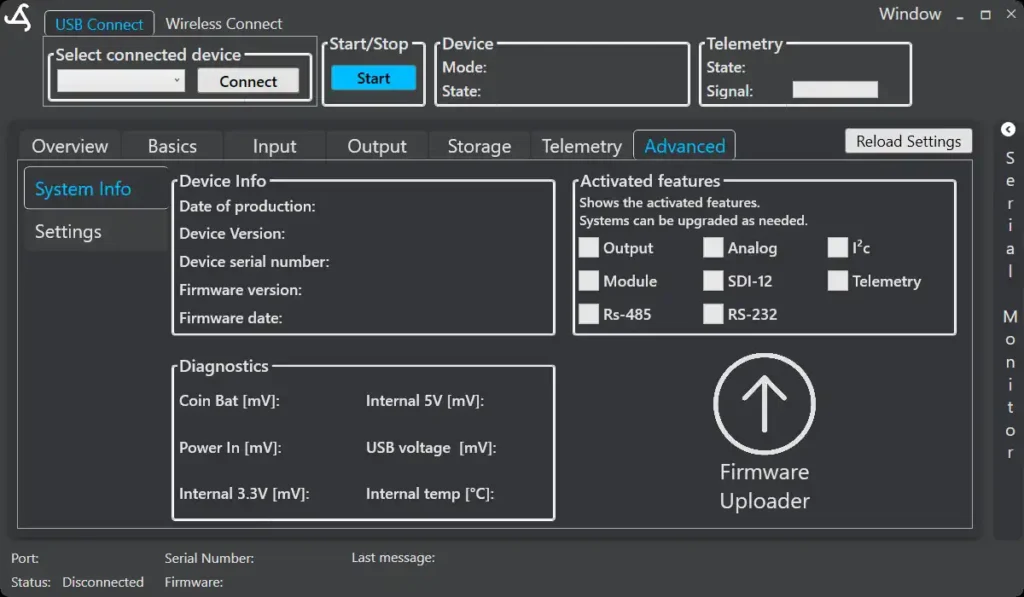
Device Info
Displays basic identification and firmware details:
- Date of production
- Device version
- Device serial number
- Firmware version
- Firmware date
This information uniquely identifies the device and should be included when contacting support.
Activated Features
Shows which software features are currently enabled on the device.
Only activated features are available in the main configuration tabs.
Typical features include:
- Output
- Analog
- Module
- SDI-12
- RS-485
- RS-232
- I2C
- Telemetry
Additional features can be activated later if required.
Diagnostics
Displays live internal system values for monitoring and troubleshooting:
- Coin battery voltage
- Power input voltage
- USB voltage
- Internal 5 V supply
- Internal 3.3 V supply
- Internal temperature
These values help identify power issues, battery status, or abnormal operating conditions.
Firmware Uploader
The Firmware Uploader is used to update the device firmware.
Use this function to:
- Install firmware updates
- Apply bug fixes
- Enable new functionality
Only perform firmware updates when a stable power supply is connected.
Advanced → Settings
The Settings section contains system-wide configuration options that affect power behavior, startup logic, and advanced operating modes.
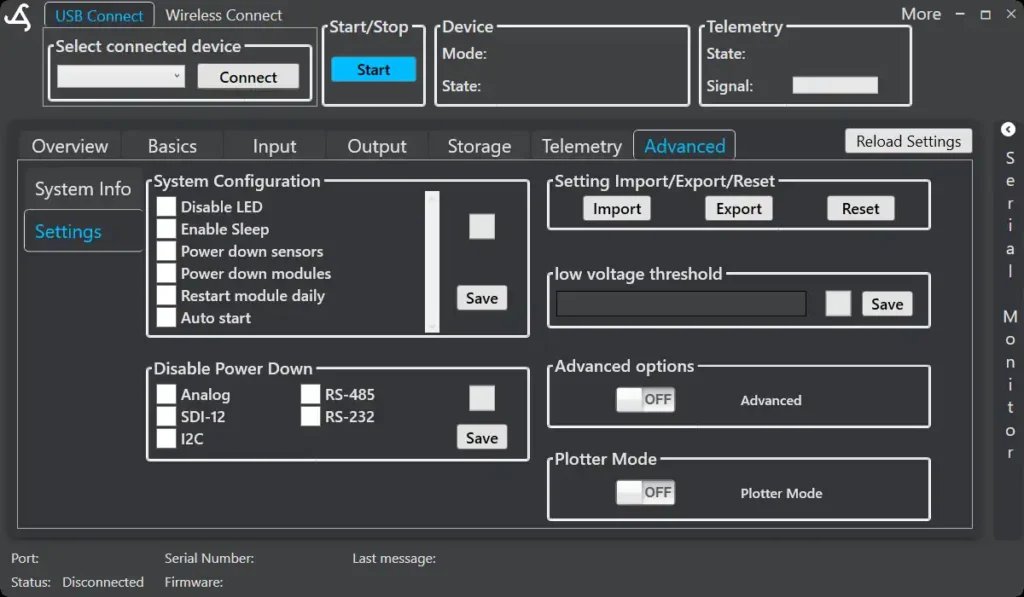
System Configuration
General system and power management options:
- Disable LED
Turns off status LEDs to reduce power consumption or light emission. - Enable Sleep
Allows the system to enter low-power sleep modes when idle. - Power down sensors
Switches off connected sensors when not in use. - Power down modules
Disables module power between operations. - Restart module daily
Performs an automatic daily restart to improve long-term stability. - Auto start
Automatically starts the configured program after power-up.
Changes must be saved to take effect.
Disable Power Down
Allows selected interfaces to remain powered even when power-saving modes are enabled.
Selectable interfaces:
- Analog
- SDI-12
- I2C
- RS-485
- RS-232
This is useful for devices that require continuous power or extended warm-up times.
Low Voltage Threshold
Defines the minimum input voltage required for system operation.
If the voltage drops below this threshold:
- The system may stop operation
- Battery protection is prioritized
This setting helps prevent deep battery discharge.
Setting Import / Export / Reset
Configuration management tools:
- Import – Load a saved configuration file
- Export – Save the current configuration
- Reset – Restore factory default settings
Useful for backups, duplication across devices, or recovery.
Advanced Options
Enables additional internal system options.
These settings are intended for testing or special use cases and should remain disabled unless specifically required.
Plotter Mode
When Plotter Mode is enabled, the SmartSampler2 switches its communication output from binary (HEX) to ASCII text format.
This allows the use of external tools such as serial monitoring or plotting software (e.g. SerialPlotter) to visualize incoming data streams in real time.
Important notes:
- The SmartSampler must be disconnected from SmartConfig
- Only one application can access the serial interface at a time
- Plotter Mode is intended for testing, visualization, and debugging, not for normal operation
Disable Plotter Mode to return to standard binary communication and reconnect to SmartConfig.