
5.1.5 Adding and configuring actions
The Blocks tab lists the actions available for a SmartSampler2 user-defined program. Actions are grouped by function, and each block shows its function number, name, and a short description.
To add an action, drag it from the Blocks tab onto the canvas. SmartConfig2 opens the configuration window automatically. To edit an existing action, double-click its block on the canvas.
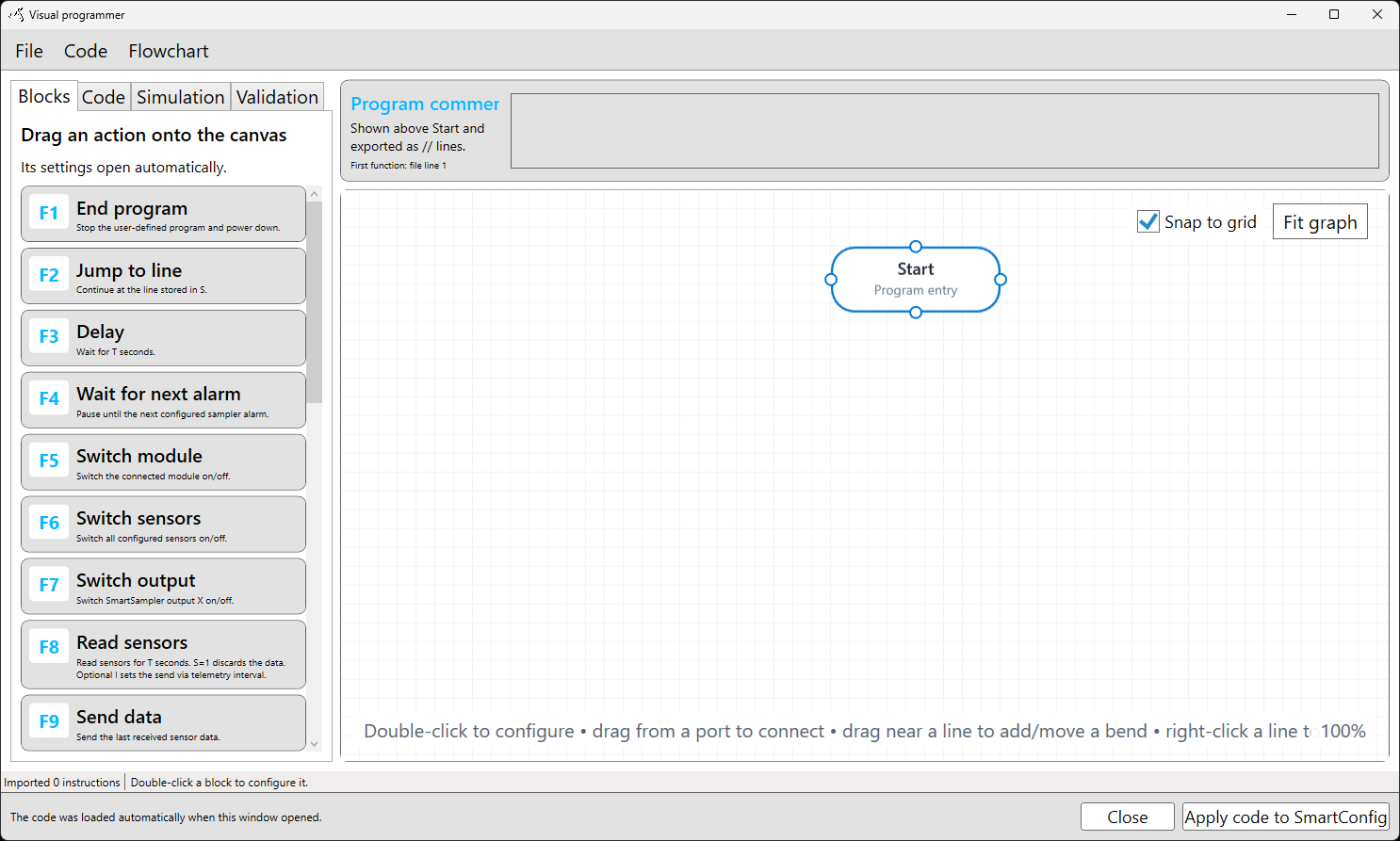
Configure an action
The available fields depend on the selected action. Numeric fields can generally contain a fixed value or a supported runtime value, such as a user-defined parameter, temporary-storage value, counter, or formula result. SmartConfig2 displays context-sensitive help and validates required fields and supported ranges before accepting the configuration.
Actions can also be assigned to the main program or to a numbered subprogram through Program section. Leave this set to the main program for ordinary instructions. Assign the relevant subprogram number when the action must execute only while that subprogram is active. Add an optional Comment to explain the purpose of an individual action; comments do not change execution.
Select Apply to keep the settings. Select Cancel to close the configuration window without applying them.
Available action types
The action catalog supports operations including:
- ending the program, jumping to a line or connected target, delaying execution, and waiting for the next configured alarm;
- switching the connected module, configured sensors, or a SmartSampler2 output on or off;
- reading sensors for a configured period, with the option to save or discard the measurement;
- sending the latest sensor data, a custom value, or basic telemetry;
- sending a sensor cleaning command;
- setting a subprogram, ending a subprogram, and selecting whether to return, continue, or jump afterward;
- calculating a formula and using its result in later actions;
- modifying temporary storage values and pulse counters;
- comparing two values and activating a configured subprogram when the comparison is true;
- waiting for pulse-based flow control to reach a target or its maximum time;
- using supported commands for AquaMate, AutoSampler8, and Multi-relay modules.
Module commands depend on the connected equipment and its configuration. Consult the applicable SmartSampler2 Expansions documentation for module wiring, power, and operating guidance. For communication and pulse-signal interfaces, consult SmartSampler2 Hardware Interfaces. Before operating pumps, valves, or other equipment, complete the hardware checks in SmartSampler2 Diagnostics & Maintenance.
Values, formulas, and flow control
Runtime values allow one action to use information produced by an earlier action. Depending on the action, available values can include user-defined parameters, sensor inputs, temporary storage, counters, and the formula result r.
The formula editor accepts a formula and up to four selected positions from the most recent comma-separated sensor-data string. Assign positions to a, b, c, and d; positions are one-based, and 0 marks an unused input. Select Test formula to test the expression with sample data. SmartConfig2 reports invalid expressions or positions before the action is applied.
Flow-control actions can use pulse counters and a target volume or count. A flow-control fill waits for the configured target or maximum time, then continues according to the program flow. Use only supported hardware and verify the installation against the relevant SmartSampler2 expansion documentation.
Edit and arrange blocks
Drag blocks to reposition them. When Snap to grid is enabled, blocks align to the canvas grid. Open the Flowchart menu and select Auto layout to arrange the program automatically, or select Delete selected to remove the selected block.
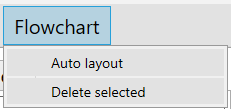
The visual arrangement helps you review the program, but the grey Code flow connections determine the physical instruction order generated for SmartSampler2. Review the connections after adding, deleting, or moving blocks, then validate and simulate the completed program before applying it.
Related hardware: SmartSampler2 hardware reference.