
5.1.3 Visual Programmer overview
The Visual Programmer provides a canvas for creating and reviewing SmartSampler2 user-defined programs. Drag an action from the Blocks tab onto the canvas, double-click a block to configure it, and connect blocks through their ports to define the workflow.
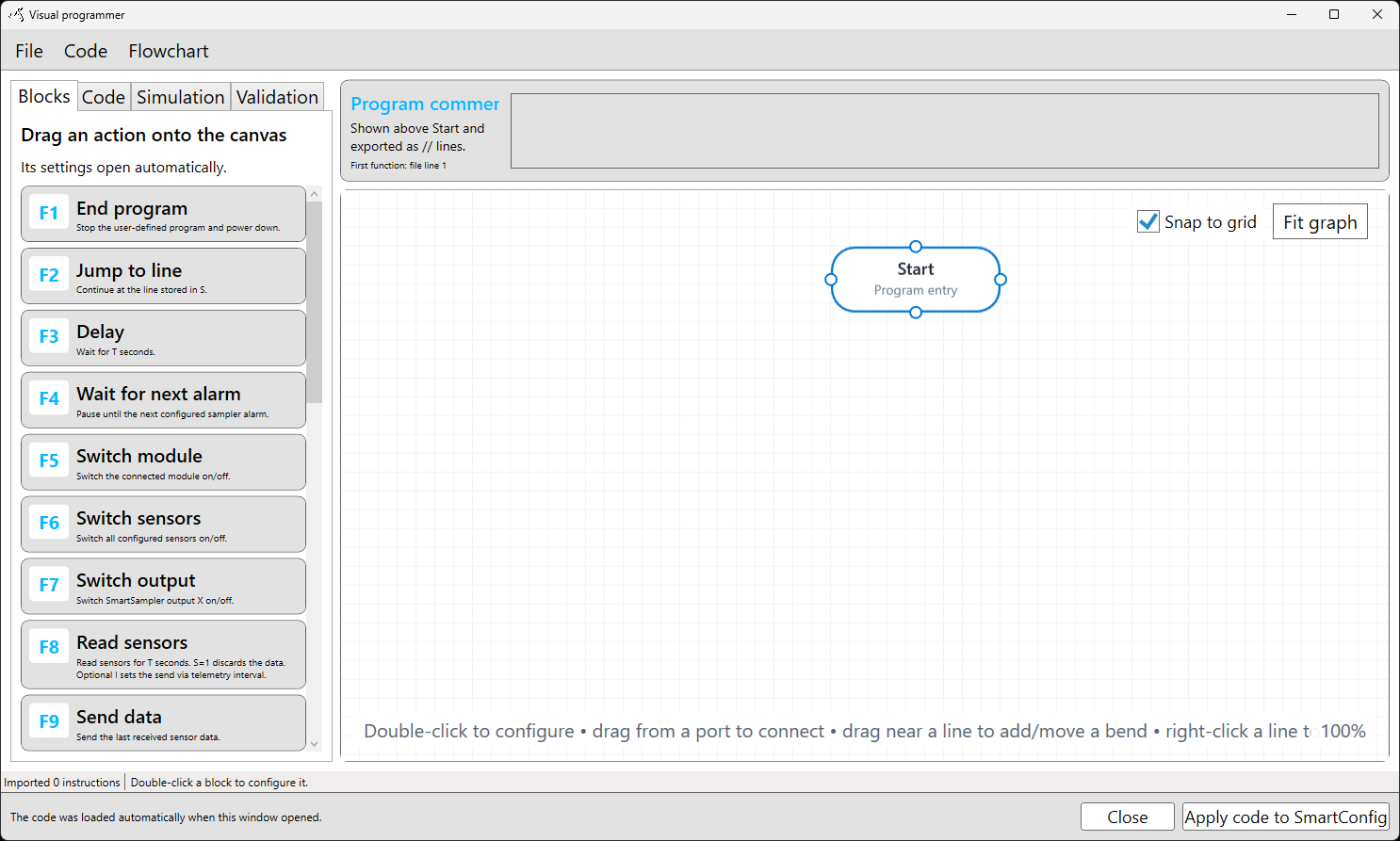
Main areas
- Blocks: Lists the available program actions. Drag an action onto the canvas to add it; its settings open automatically.
- Canvas: Displays the visual workflow. The Start block is the program entry point.
- Code: Provides conversion between the line-based program and the visual flowchart, and includes code validation.
- Simulation: This tab is part of the interface. Use the documented validation and connected-device workflows when checking a program; do not treat the canvas as a substitute for running the program on SmartSampler2.
- Validation: Select Validate to check the program and review reported issues in the results table.
- Program comments: Add a program-level description. Comments are preserved when code is generated or exported.
- Snap to grid: Aligns blocks when they are moved.
- Fit graph: Adjusts the view so the program graph fits on the canvas.
- File: Provides project and code file actions.
- Flowchart: Provides Auto layout and Delete selected.
- Apply code to SmartConfig2: Generates code from the visual workflow, returns it to SmartConfig2, and closes the Visual Programmer.
- Close: Closes the Visual Programmer without applying the current changes.
Working with the canvas
Drag a block to reposition it. Hold Ctrl while selecting to add or remove individual blocks from a selection, or drag across an empty area to select several blocks. Moving a selected block moves the selected group. Use Flowchart → Delete selected to remove selected blocks.
Drag from a connector to create a connection. Code-flow connections define the physical instruction order used when program code is generated. Runtime connections such as jump and return paths describe program behavior separately. Right-click a connector or existing line to choose permitted line types or manage the connection.
To improve readability, drag near a connection to add or move a bend point, select a connection to show its handles, and right-click a bend point to remove it. Pan the canvas with the middle mouse button. Hold Ctrl while using the mouse wheel to zoom, or select Fit graph to restore a complete view.
Reviewing and validating a program
Use the Code menu to select Code to Flowchart, Flowchart to code, or Validate code. In the Validation tab, select Validate and review the line, level, and message columns. Correct reported errors, such as a missing End program action, and validate again before applying the program.
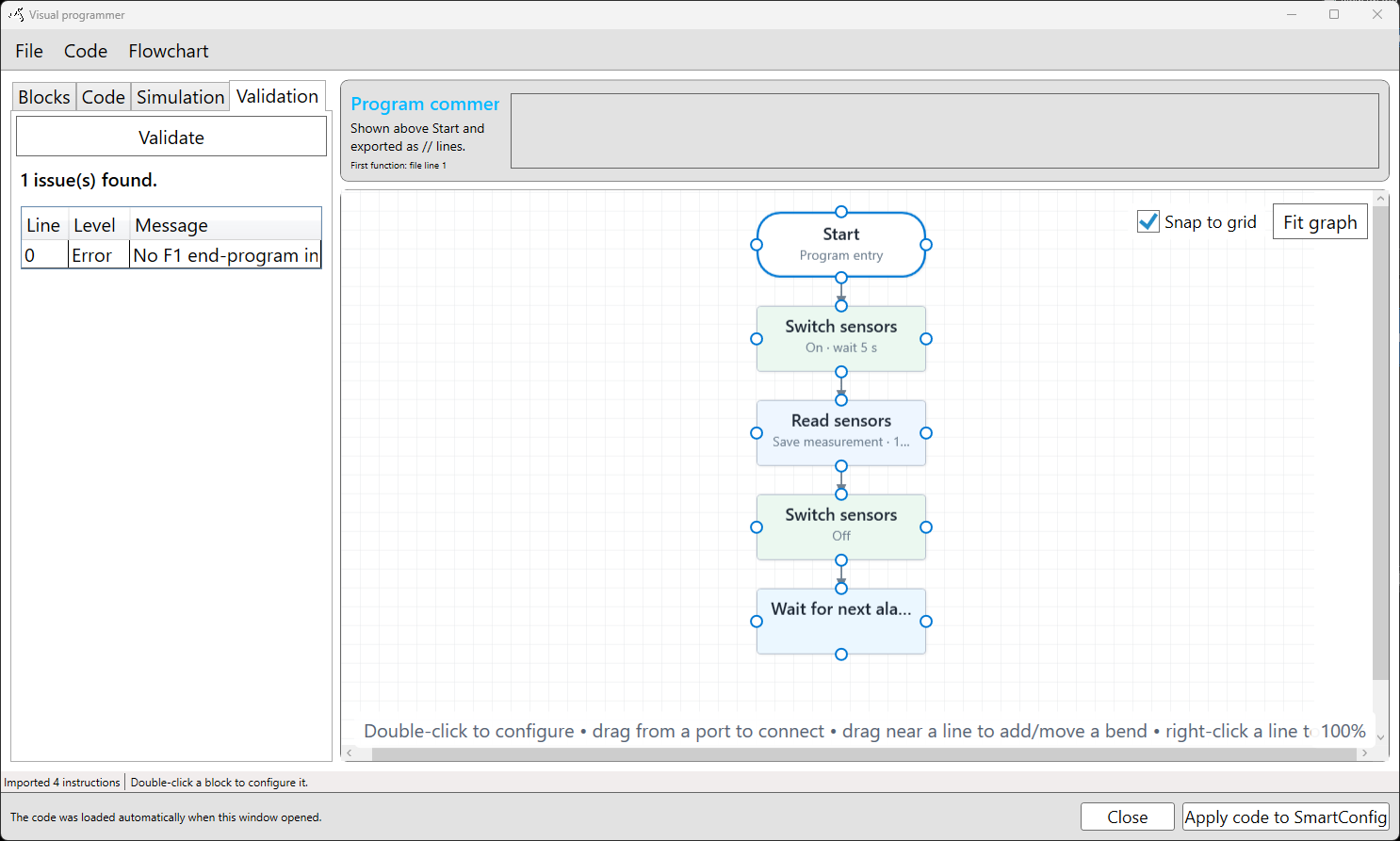
Available actions cover supported SmartSampler2 functions such as delays, sensor and output control, readings, data transmission, formulas, temporary storage, comparisons, counters, flow control, subprograms, and supported module commands. Configure only the parameters shown for the selected action.
For the physical connection used when configuring a SmartSampler2, see SmartSampler2 hardware interfaces.
Related hardware: SmartSampler2 hardware reference.