
4.4 Data Storage
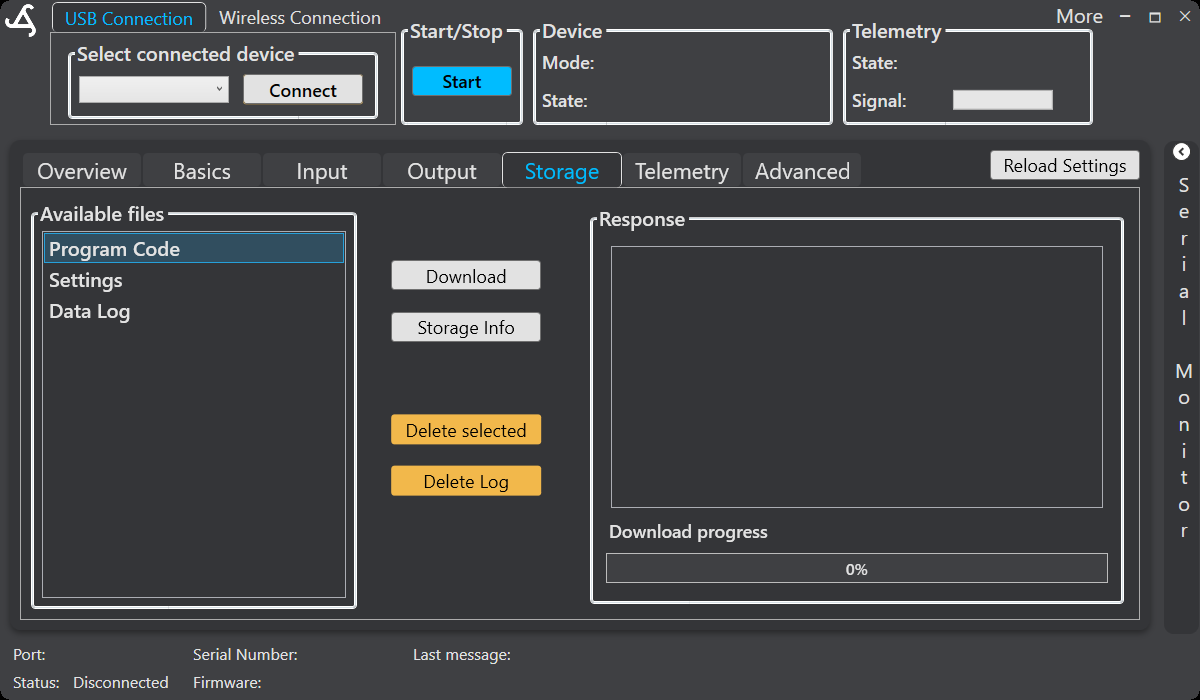
The Storage area provides access to files stored on the SmartSampler2 SD card. Connect to SmartSampler2 over USB or through a supported wireless connection, then allow SmartConfig2 to load the device configuration automatically. Select Reload Settings only when the automatic retrieval did not complete or you need to refresh the displayed configuration.
For the approved wired connection method, see SmartSampler2 Hardware Interfaces. The supplied cable is required when a watertight USB connection is needed.
Storage contents
SmartSampler2 can store sampled sensor readings and configuration-related information on its SD card. Recorded sensor data can include a timestamp, voltage, enabled sensor values, connected module measurements, and sampler-mode data. Firmware 0.4.0 writes timestamps in ISO 8601 format with a time-zone offset; for example, 2026-09-29T18:10:45+10:00. The available entries shown in SmartConfig2 depend on the connected device and its configured interfaces.
Depending on the device configuration, storage can also contain program settings, system settings, raw data, historical data prepared for transfer, interface or module records, telemetry-related configuration, firmware-update records, and error information. SmartConfig2 presents only the storage controls available for the selected entries.
The save interval controls how often sampled readings are written to storage. It is separate from the interval at which sensors are read. For example, if sensors are read every second and the save interval is 10, every tenth reading is saved.
View storage information and files
- Connect SmartConfig2 to SmartSampler2 and wait for the configuration to load.
- Open Storage.
- Select Storage Info to request storage information and refresh the available-file list.
- Select an entry in Available files to manage that file.
The Storage screen displays a response panel for device feedback and a download-progress indicator. The supplied interface screenshot shows entries for Program Code, Settings, and Data Log. Additional supported entries may be displayed by the connected SmartSampler2.
Download a file
- Select a file in Available files.
- Select Download.
- Choose a destination and select either TXT or CSV output when prompted.
- Wait for the download-progress indicator to reach completion before disconnecting SmartSampler2.
SmartConfig2 transfers the selected file from SmartSampler2 over the USB connection and reports progress while the file is received. If the selected file cannot be opened or the SD card is unavailable, SmartConfig2 reports the failure in the response area.
Delete stored data
- Select a file and choose Delete selected to remove the selected entry.
- Choose Delete Log to remove the data log when required.
- Read the warning and confirm the operation before continuing.
Deletion is irreversible through SmartConfig2. Download any measurements or diagnostic information that you may need before deleting them.
Replace a supported storage entry
Some selectable storage entries can accept a replacement file. When the control is available, SmartConfig2 asks you to confirm that the selected entry will be overwritten, then opens a file picker for a compatible BIN file. Built-in entries that cannot be replaced remain unavailable for this operation. Follow the enabled control state rather than assuming that every displayed file supports replacement.
Format the SD card
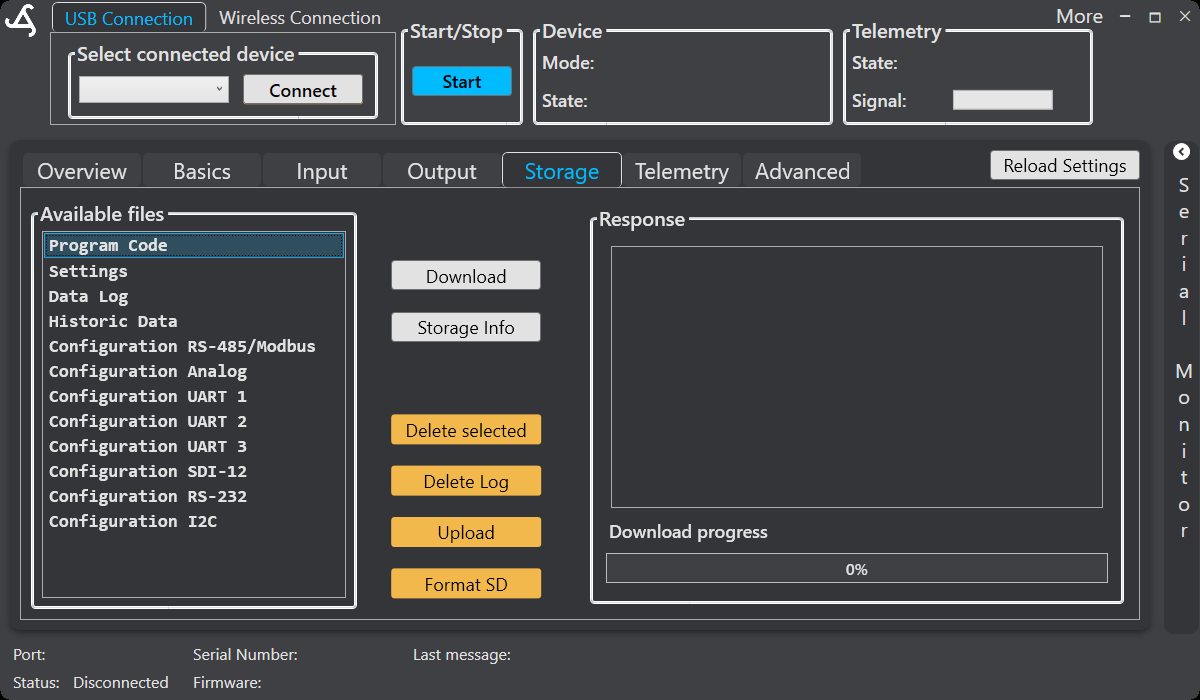
Formatting erases the entire SmartSampler2 SD card. Use this operation only when you intend to remove all stored content.
- Open the advanced Storage controls when Format SD card is available.
- Save all required measurements, settings, and diagnostic files.
- Choose Format SD card.
- Read the irreversible-operation warning and confirm only if you intend to erase the card.
Settings transfer
SmartConfig2 provides settings transfer controls for supported SmartSampler2 configurations. Export saves the device settings to a local BIN file, and Import sends a compatible BIN file to SmartSampler2. Use export to keep a backup before making significant changes. Importing or resetting settings can change the device configuration, so verify the selected file and intended operation first.
Keep important configuration and measurement files backed up before importing, resetting, deleting, replacing, or formatting storage.
Related information
Telemetry data may be queued for transmission while a server connection is unavailable and handled when connectivity returns. See Telemetry Settings for telemetry configuration.
Related hardware: SmartSampler2 hardware reference.