
4.1.2 Time
The Time page under Basics manages the onboard real-time clock (RTC) in SmartSampler2. The clock is used for timestamps and time-based or recurring operation, so check it before configuring a scheduled deployment.
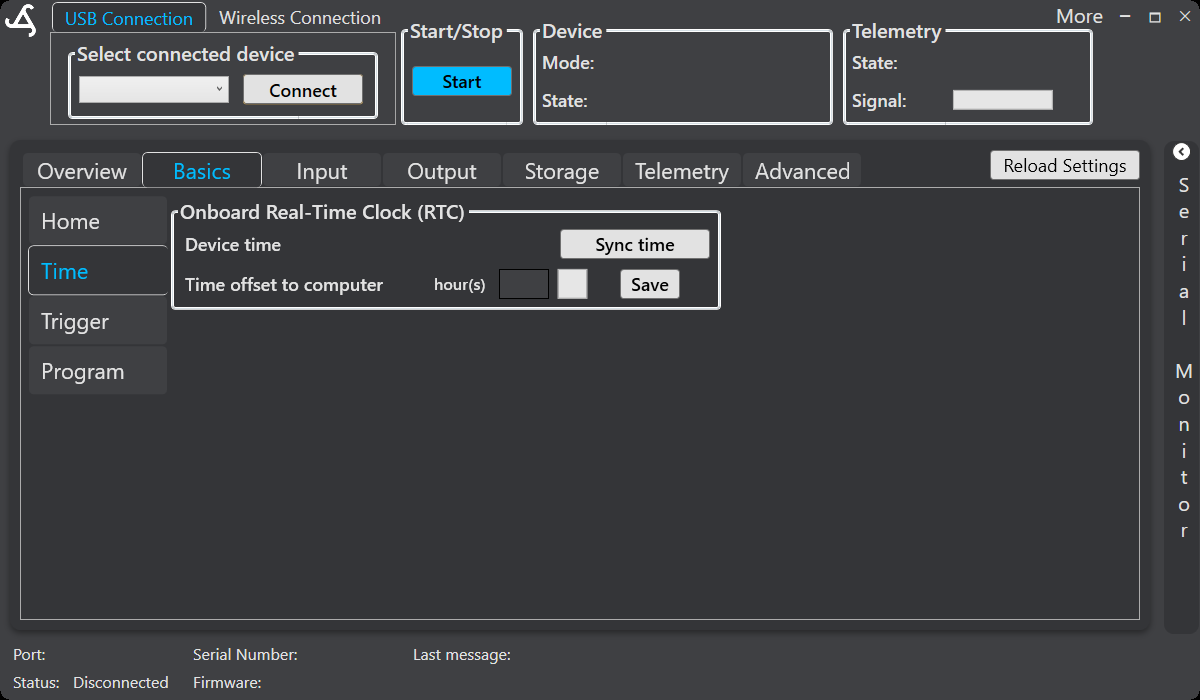
Onboard real-time clock
The Device time area displays the SmartSampler2 clock. SmartConfig2 can synchronize this clock with the computer using Sync time. The synchronization uses the computer's current local time and time-zone offset.
Time offset
Time offset to computer applies an hour adjustment relative to the computer time. With SmartSampler2 firmware 0.4.0, adjust this manually only when Time update via LTE is disabled. When LTE time updates are enabled, let the device manage its time basis and verify the resulting timestamp before scheduling operation.
SmartSampler2 can also receive a clock update from an enabled cellular time-synchronization service. After an update, verify the displayed device time before relying on a scheduled start or recurring trigger.
Recommended setup
- Connect SmartConfig2 to the SmartSampler2 and allow the device configuration to load.
- Open Basics and select Time.
- Review the displayed device time.
- Select Sync time to synchronize with the computer. If LTE time updates are disabled, enter and save the required time offset.
- Verify the result, then configure scheduled operation in the Trigger page.
Scheduled operation
SmartSampler2 uses its RTC for delayed starts, scheduled triggers, alarm timing, timestamps, and calculation of the next recurring sampling event. When low-power operation is enabled, the device can enter a low-power state while waiting for the next scheduled wake-up.
Related documentation
For trigger conditions and sampling intervals, see Basics > Trigger. For the physical device connection and interfaces used during setup, see the SmartSampler2 Hardware Interfaces reference.
Related hardware: SmartSampler2 hardware reference.