5.1.6 Connecting actions and controlling program flow
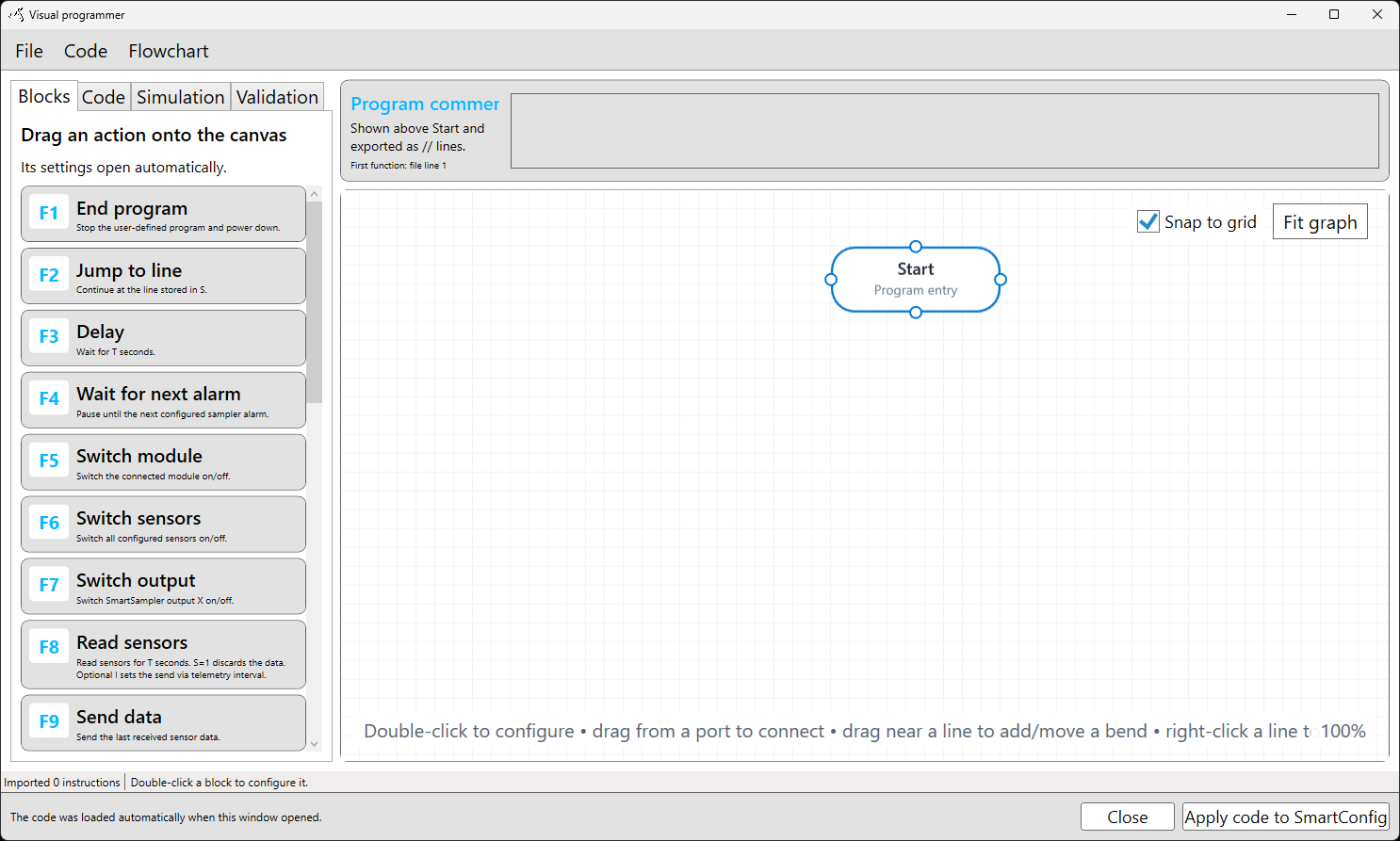
Connect action blocks to define how a SmartSampler2 user-defined program is organized and executed. Each block exposes connector ports on its top, left, right, and bottom edges.
Drag from a connector on one block to a connector on another block. A new connection is a Code flow connection by default. Right-click a connector before connecting to select another permitted connection type.
Code flow and runtime flow
Code flow connections define the physical order of instructions in the generated SmartSampler2 program. They are independent of runtime control-flow connections. The position of a block on the canvas does not determine execution order.
- Use Code flow to establish the generated instruction order.
- Use a Jump connection for a supported jump target.
- Use a Return connection only from an End subprogram action when returning to its caller.
- For supported jump actions, choose either a visually connected block or a fixed or dynamic value such as a line number, parameter, or counter.
A jump or return can exist alongside the Code flow connection for the same block. Review both types when checking the program.
Adjust connections
- Drag near a connection line to add a bend or move an existing bend.
- Select a connection to display its bend-point handles, then drag a handle to reposition it.
- Right-click a bend point or its handle to remove it.
- Right-click an existing line to change its permitted type, clear bends, or delete the line.
Arrange blocks and lines so that the program can be followed clearly. Avoid unnecessary crossings, especially when a program contains jumps or subprograms.
Subprograms and conditional execution
Assign an action to the main program or to a numbered subprogram using Program section, or use the flowchart context menu to assign one or more selected blocks. A Set subprogram action activates its configured subprogram number. Instructions assigned to that number execute while the matching subprogram is active.
The Compare action has normal Code flow only. When its comparison is true, it activates the configured subprogram and execution continues through Code flow. It does not use separate Yes and No runtime lines. The subprogram number is configured in the action itself.
An End subprogram action can return to its caller, continue with the next block, or jump to a selected target. The jump target is used only when After subprogram is set to Jump.
Check the completed flow
- Confirm that the Code flow connections produce the intended generated instruction order.
- Ensure every required action is reachable from Start.
- Check that each jump target is valid and supported by its action.
- Verify that every activated subprogram has actions assigned to the matching program section.
- Ensure each subprogram has an intentional return, continuation, jump, or program end.
- Run validation and simulation before applying the program to SmartSampler2.
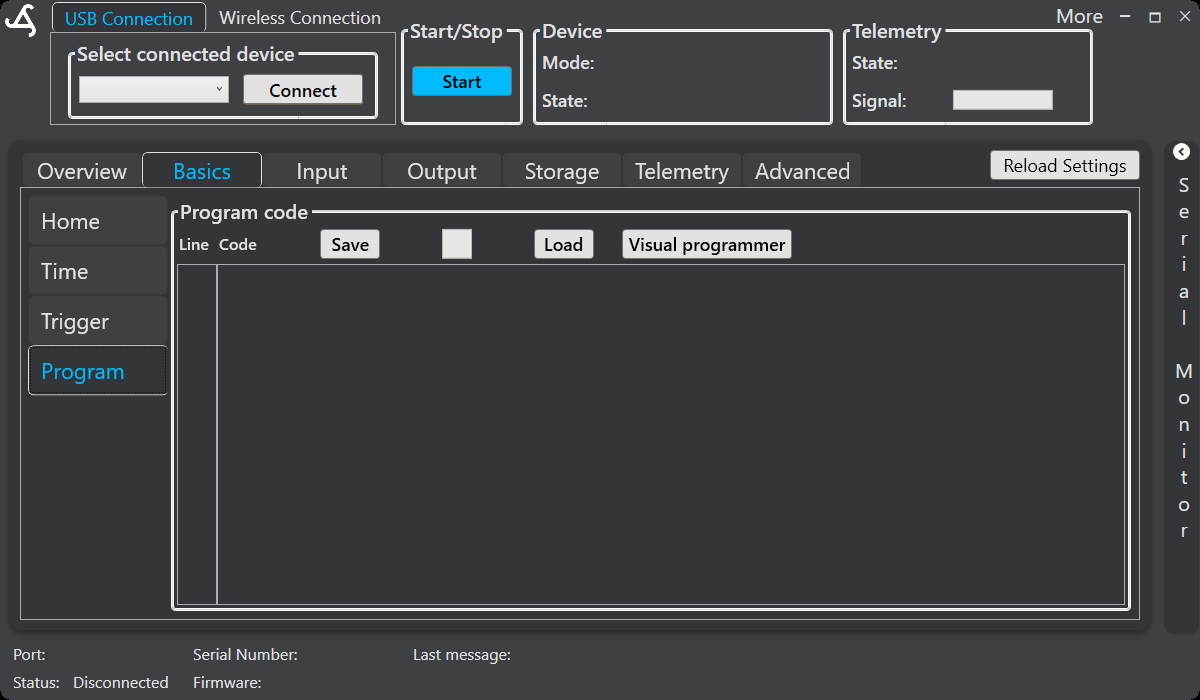
To review or apply the resulting line-based program, use Basics > Program in SmartConfig2. The Visual programmer button opens the graphical editor, while the program-code area shows the generated line order.
For connected pumps, valves, communication equipment, or other modules, verify the physical installation separately. See SmartSampler2 Diagnostics & Maintenance for basic hardware checks and first-level troubleshooting.
Related hardware: SmartSampler2 hardware reference.