
5.1.1 Introduction
User-defined programs control how the SmartSampler2 performs measurements, operates connected modules and sensors, waits between actions, and transfers collected data.
Create programs in the Visual Programmer in SmartConfig2. Drag action blocks onto the canvas, configure each block, and connect the blocks to define the required Code flow and supported runtime behaviour. SmartConfig2 generates the line-based program used by the SmartSampler2, so routine program creation does not require programming knowledge.
What a user-defined program can do
The action catalogue includes delays, waits for the next alarm, module and sensor switching, output control, sensor readings, data and telemetry actions, cleaning commands, formulas, temporary storage, counters, comparisons, pulse-based flow control, subprograms, and supported connected-module commands. Formula actions can use selected sensor-data fields and supported runtime values to calculate a result for later actions.
Creating and checking a program
- Open the Visual Programmer from the user-defined configuration area. The current user-defined program is loaded automatically.
- Drag action blocks from the palette onto the canvas and double-click a block to configure it.
- Connect the blocks to define Code flow and any supported runtime paths, such as jumps, returns, or conditional subprogram activation.
- Use the Simulation tab to reset, step through, run, and pause the program without operating the SmartSampler2.
- Use the Validation tab, or Code → Validate code, to check the program structure and generated code.
- Select Apply code to SmartConfig2 to generate the current program code, return it to SmartConfig2, and close the Visual Programmer.
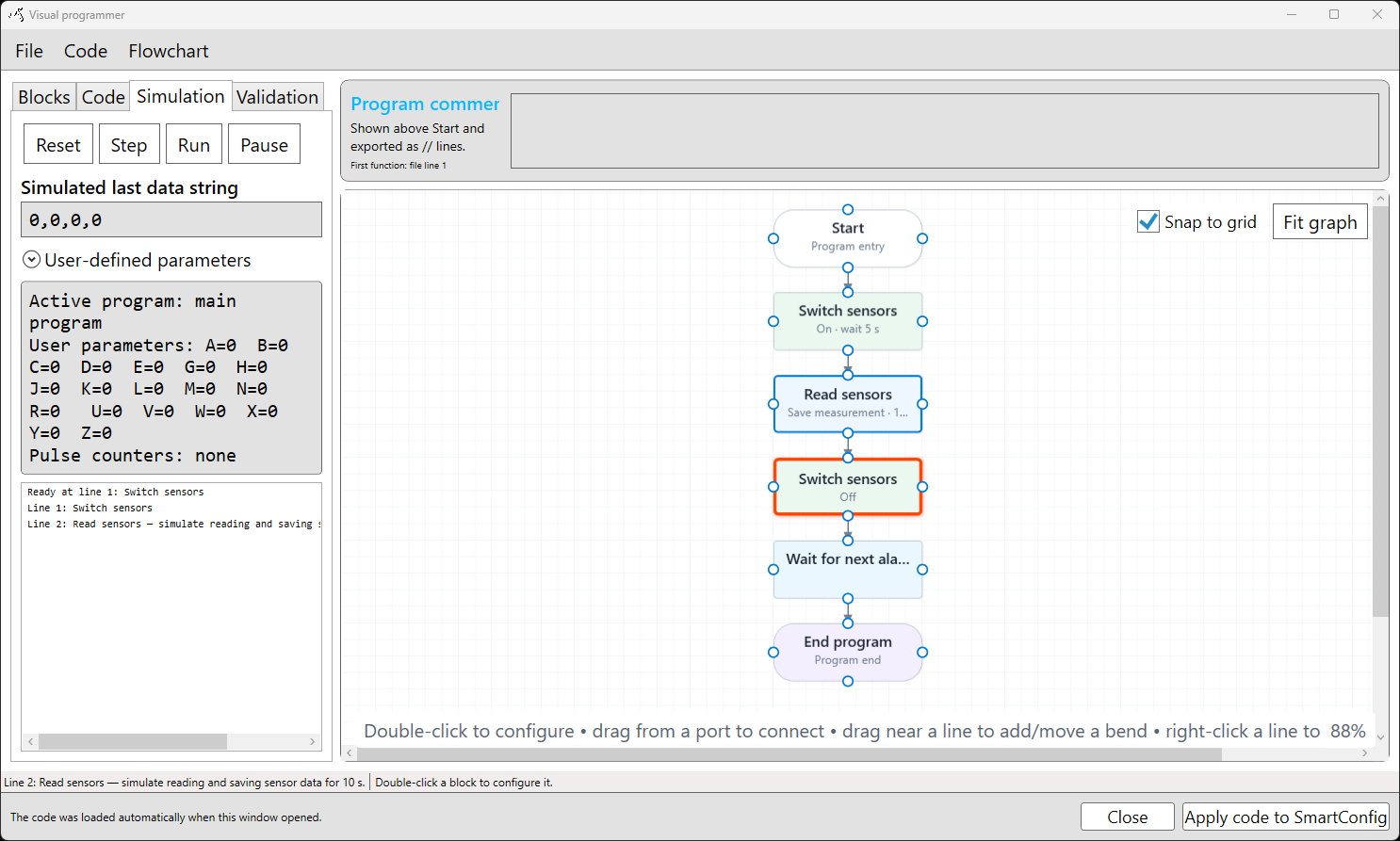
Simulation can use a supplied last-data string and user-defined parameters. During execution, SmartConfig2 shows the active program area, runtime values, the highlighted action, and execution messages. Use these results to check timing, formulas, comparisons, counters, and program flow before deployment.
You can save a visual project before applying changes. If you edit generated code directly, use Code → Code to Flowchart to rebuild the visual program, then review the automatically generated layout, connections, comments, program sections, and jump targets before simulation and validation. For advanced editing details, see 5.1.15 Advanced code view.
For supported actions and parameters, see 5.1.14 Function reference. For module-specific planning, see the verified SmartSampler2 documentation for AquaMate and AutoSampler. Confirm the connected hardware and required configuration before applying a program for field operation.
Related hardware: SmartSampler2 hardware reference.