
4.5.4 First-Time Network Connection
This section explains how to establish the first cellular network and telemetry-server connection for a telemetry-enabled SmartSampler2 using SmartConfig2.
Before you begin
- Confirm that the SmartSampler2 has the required telemetry hardware, including the cellular module and antenna.
- Insert an active SIM card as specified by the SIM provider.
- Have the cellular access-point name (APN) and the telemetry-service connection details supplied for your deployment available. Do not enter credentials from another installation.
- Install SmartConfig2 on the computer used for setup.
- For a wired setup, connect the SmartSampler2 using the originally supplied Mini USB-B cable. Follow the waterproof connector and sealing guidance in SmartSampler2 Hardware Interfaces.
Ensure that the antenna is connected before powering the telemetry module. Confirm the installed hardware and the applicable operating limits in the SmartSampler2 Specifications.
Configure telemetry
- Start SmartConfig2 and connect to the SmartSampler2 through USB, or use the supported wireless connection when the telemetry module and MQTT service have already been provisioned.
- After connecting, allow SmartConfig2 to retrieve the device settings automatically. Use Reload Settings only if retrieval did not complete or if you need to refresh the displayed values.
- Open the telemetry configuration area.
- Select the available telemetry provider and enter the APN and the deployment-specific telemetry-server settings supplied by the service provider.
- Send or save the telemetry settings to the SmartSampler2.
SmartConfig2 does not provide customer-facing device profiles. For a wireless connection, use the SmartSampler2 system serial number, the account username, and the account password supplied for the deployment. Choose any connection alias that helps identify the installation. Keep these values private.
Automatic connection
After the telemetry settings have been saved, the SmartSampler2 automatically progresses through module startup, cellular registration, telemetry-server connection, and normal telemetry operation. The device reports the SmartSampler2, cellular-network, and server connection states to SmartConfig2.
Depending on configuration, the SmartSampler2 can buffer telemetry while communication is being handled and retain eligible data locally when the server connection is unavailable. When the connection is restored, the device resumes connection management and transmission. Automatic timeout recovery can restart an unresponsive cellular connection and retry network connection after the configured warm-up period.
Manual network selection for setup or troubleshooting
Use the telemetry debug controls when automatic registration does not complete, when the SIM provider requires a specific operator, or when you need detailed feedback during commissioning. Enable Advanced > Settings > Advanced options only when required for support or diagnostics, then open the telemetry debug area.
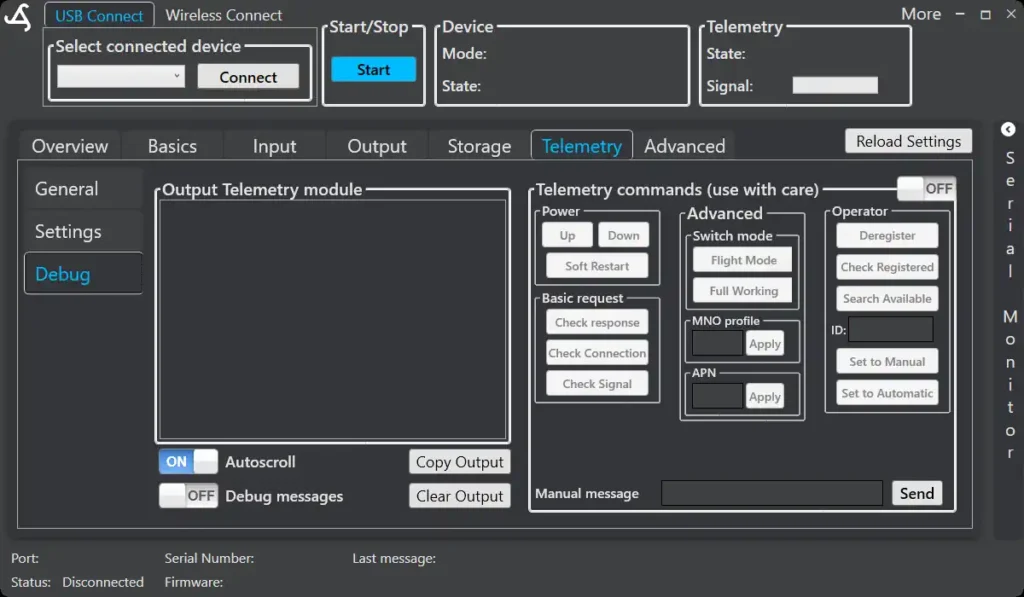
- Enable manual telemetry commands in the debug area.
- Power on the SmartSampler2 and allow the telemetry module to initialize. Allow approximately five seconds before checking its response.
- Select Check response. A response of
OKindicates that the module is responding. - Select Check connection and review the reported registration state:
0:0— not registered and not searching;0:1— registered on the home network;0:2— searching for a network;0:3— registration denied;0:5— registered while roaming.
- If the state is
0:1or0:5, the cellular network connection is established. - If the state is
0:2, select Search Available. The search can take several minutes. Do not power down the SmartSampler2 while it is in progress. - Review the operators returned in the cellular feedback area. Select an operator ID appropriate for the SIM and deployment, enter it in the ID field, and select Set to Manual.
- Select Check connection again. If registration is denied or does not occur, try another returned operator and repeat the check.
- After a stable connection has been confirmed, select Set to Automatic. Automatic operator selection is recommended for normal operation, particularly when a roaming SIM may use more than one network.
APN and server settings
If the SIM provider requires a specific APN, enter it in the APN field and apply or send the settings before checking the connection again. Use only the APN and telemetry-server values supplied for the deployment. SmartConfig2 sends the entered settings to the SmartSampler2 for storage; it does not determine or provide these values.
Confirming normal operation
Once the cellular connection is established, the SmartSampler2 attempts to connect to the telemetry server. SmartConfig2 can show the connection state, signal information, telemetry-module information, and—when enabled and available—GPS position, altitude, GPS time, and fix status.
When connected to the server, the SmartSampler2 reports its connection state and low-battery status and sends sampler information. Live telemetry updates can be enabled or disabled from the telemetry interface for a directly connected or supported remote connection. Live updates are separate from the device's normal queued telemetry handling.
When telemetry power saving is enabled for time-triggered operation, the cellular module may power down while it is not required and power up again when communication is needed. This is expected behavior and does not by itself indicate a failed connection.
If connection fails
- Check that the SmartSampler2 is powered and that the antenna and telemetry hardware are installed correctly.
- Confirm that the SIM is active and that its service supports the deployment location and required network access.
- Verify the APN and telemetry-server settings with the service provider.
- Repeat Check response and Check connection in the debug area.
- Use Search Available and manual operator selection only for diagnosis or commissioning, then return to automatic selection.
- Review telemetry status and error information in SmartConfig2. For hardware symptoms such as intermittent power, connector damage, or water ingress, follow SmartSampler2 Diagnostics & Maintenance.
After commissioning, close or disable debug access unless it is needed for support. Leave the SmartSampler2 in automatic operator-selection mode for normal deployment.