
4.1.4 User Program
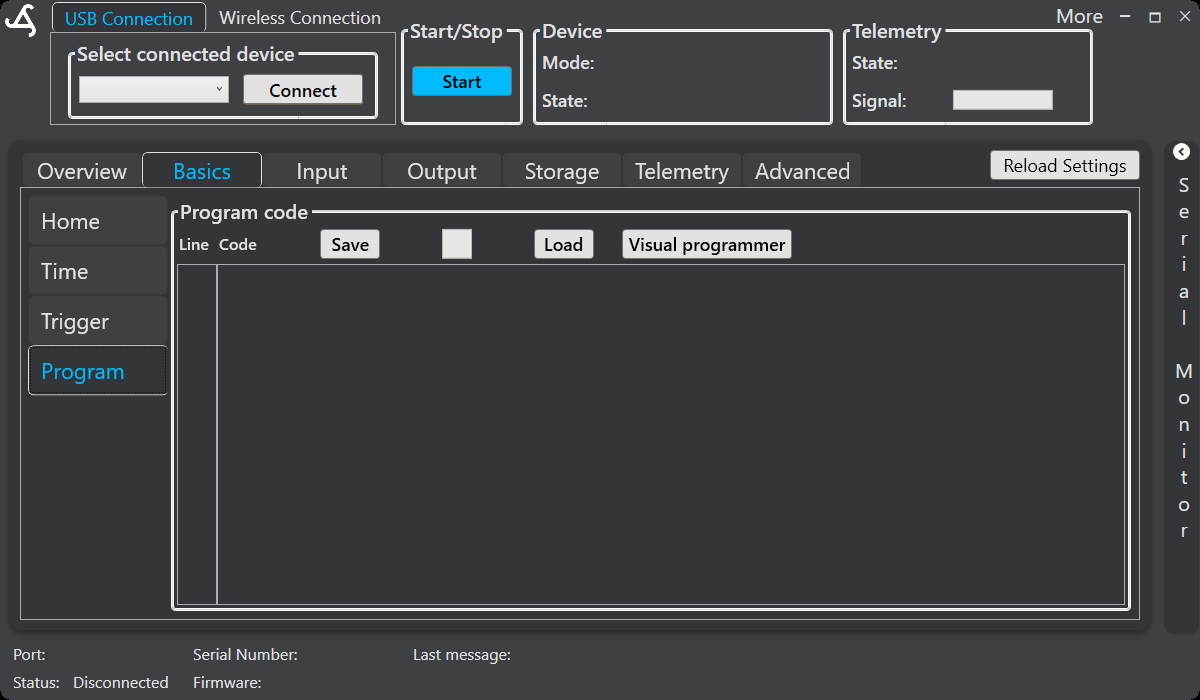
Use Basics > Program to review and manage the user-defined program for SmartSampler2. The Program page provides a line-based code area with Save, Load, and Visual programmer controls.
Before you edit a program
Connect to SmartSampler2 first. SmartConfig2 normally retrieves the device settings automatically after the connection is established. Use Reload Settings only when automatic retrieval did not complete or when you intentionally need to refresh the displayed settings.
Configure the input interfaces, outputs, and sensor settings used by the program in their respective configuration areas. For example, a Read sensors action uses the sensor configuration already defined in SmartConfig2.
Line-based program instructions
Program instructions use a function token followed by function-specific parameters. The general form is:
F#,T#,S#,O#,I#,P#
- F# identifies the action.
- T, S, O, P, and I are used only when supported by that action.
- Values may be fixed values or supported runtime parameters, counters, and formula results where the action permits them.
Available actions include ending a program, jumping to a line, delaying, waiting for an alarm, switching modules or sensors, controlling outputs, reading sensors, sending data, sending a clean command, activating a subprogram, calculating a formula, modifying temporary storage, comparing values, setting pulse counters, and waiting for pulse-based flow control. Supported connected-module actions may also be available.
Use the Visual Programmer
- Select Visual programmer on the Program page.
- When it opens, SmartConfig2 loads the current user-defined program automatically. If no program is available, it opens a new starting workflow.
- Drag action blocks from the palette onto the canvas.
- Double-click a block to configure its parameters.
- Drag from a connector to create a connection. Code-flow connections define the physical instruction order in the generated program.
- Use additional supported connections for jumps, returns, and decision paths.
The ordered instruction list and generated code remain authoritative. A visual connection does not by itself create a firmware instruction unless it maps to a supported program parameter or flow action.
Flow targets, formulas, and subprograms
Jump targets can be represented by a connected block or by a line number, parameter, or counter. Subprogram actions can return to the caller, continue with the next block, or jump to a target.
Formula actions select up to four one-based fields from the most recent comma-separated sensor-data string. Enter 0 for an unused input. SmartConfig2 validates the formula and field positions before accepting the configuration, and its test view can calculate a result from sample data.
Import, generate, and apply code
You can import existing line-based instructions into the Visual Programmer and generate program code from the visual workflow. Physical code order is preserved when the program is generated. Review validation messages, then use the program controls to save or load the code and apply the completed configuration to SmartSampler2.
Use the Visual Programmer's simulation controls to reset, step through, run, or pause a program without applying it to SmartSampler2. Review the active action, runtime values, and simulation log before deployment.
Related configuration
Configure the interfaces used by program actions in Input Ports. For connector assignments and signal requirements, see the SmartSampler2 hardware interfaces.
For the visual workspace, block palette, canvas, connections, code view, validation, and simulation areas, see 5.1.3 Visual Programmer overview.