
5.1.12 Saving, loading, and applying a program
Choose a file type
SmartConfig2 stores user-defined programs either as executable program-code files or as complete Visual Programmer projects. A program-code file contains the ordered instructions used by SmartSampler2. A project preserves the editable visual representation, including blocks, connections, comments, and diagram layout.
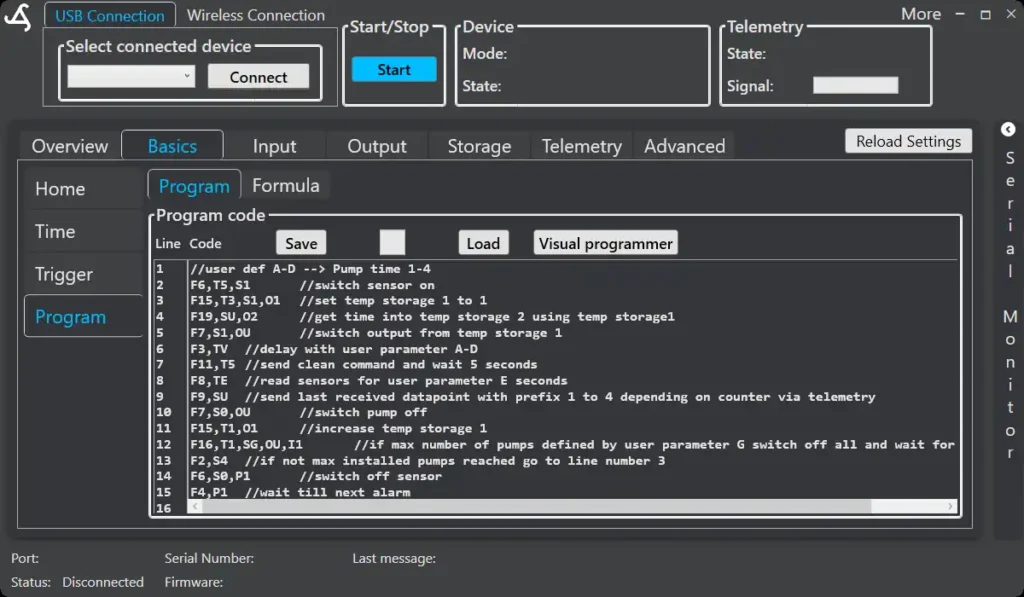
Open the File menu in the Visual Programmer to use these commands:
- Open code…: Opens a program-code file and imports its instructions into the visual editor. Because code files do not contain diagram positions, SmartConfig2 applies an automatic layout.
- Save code…: Saves the generated program code. The custom visual arrangement is not included.
- Open project…: Opens a complete Visual Programmer project.
- Save project…: Saves the program, visual arrangement, connections, and project comments for later visual editing.
- New program…: Clears the current design and starts a blank program with a Start block.
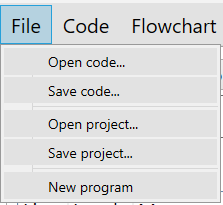
Apply a visual program
After editing the workflow, select Code → Flowchart to code to update the generated instructions. Review the program, use Simulation and Validation where appropriate, and then select Apply code to SmartConfig2.
Applying the code closes the Visual Programmer and places the generated program in SmartConfig2's program-code area. It does not by itself save the program to SmartSampler2.
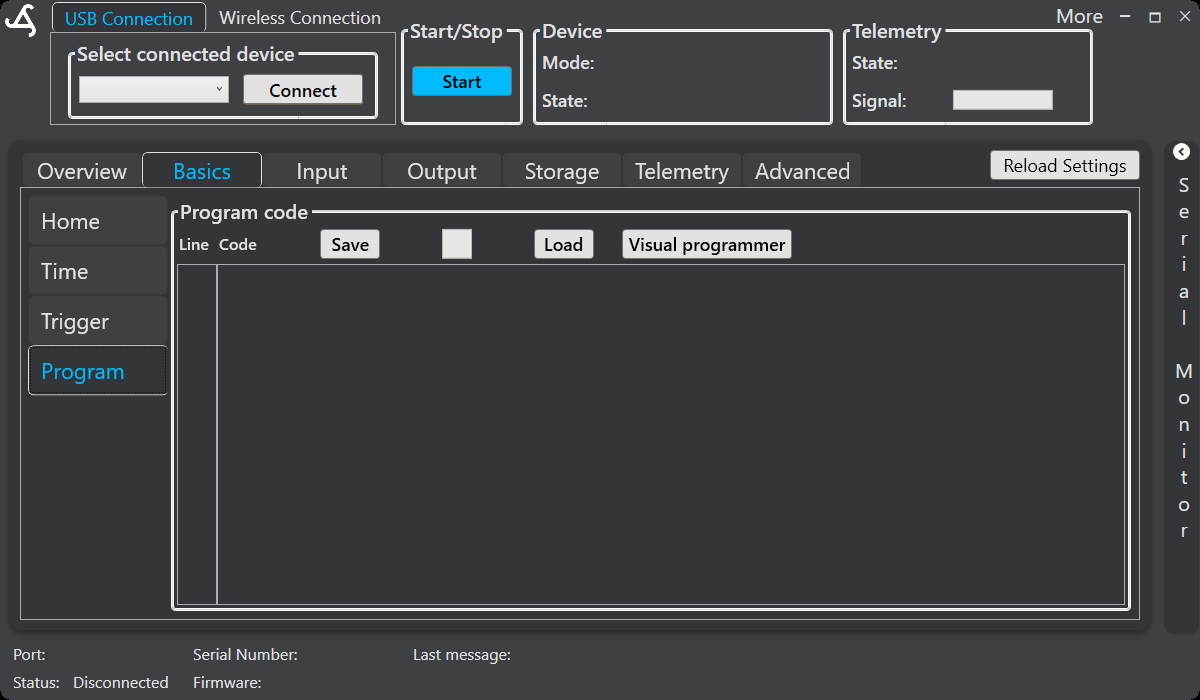
Save a program to SmartSampler2
- Connect SmartSampler2 to SmartConfig2.
- Open Basics → Program.
- Review the generated program code.
- Select Save above the program-code area.
- Wait for the transfer to complete before disconnecting the device.
SmartConfig2 provides progress feedback for applicable device operations. Do not interrupt a save or reload while the transfer is in progress.
Load a program from SmartSampler2
To retrieve a program already stored on SmartSampler2:
- Connect SmartSampler2 to SmartConfig2.
- Open Basics → Program.
- Select Load.
- Confirm that the program code appears in the program-code area.
- Select Visual programmer to import the loaded instructions into the graphical editor.
The program stored on SmartSampler2 contains executable code, not the manually arranged visual layout. If the layout is important for future editing, save a separate Visual Programmer project.
Keep a recoverable copy
For programs that will be maintained visually, save both the code file and the project. The code file provides an ordered copy of the executable instructions; the project preserves the blocks, connections, comments, and layout.
For USB connection guidance, including the Mini USB-B cable and waterproof connector, see SmartSampler2 hardware interfaces.
Related hardware: SmartSampler2 hardware reference.