
5.1.10 Simulation
The Simulation tab tests the logical flow of a SmartConfig2 visual program without operating the SmartSampler2. You can start a simulation without applying the program to the device.
Simulation is useful for checking action order, formulas, runtime placeholders, comparisons, jumps, subprogram activation, and continuation behaviour. It can also use supplied simulation data and user-defined values so that formula-driven logic can be reviewed before deployment.
Simulation controls
- Reset: stops the simulation and returns it to the beginning.
- Step: executes the next action only.
- Run: executes the program continuously according to its configured flow.
- Pause: temporarily stops continuous execution at the current position.
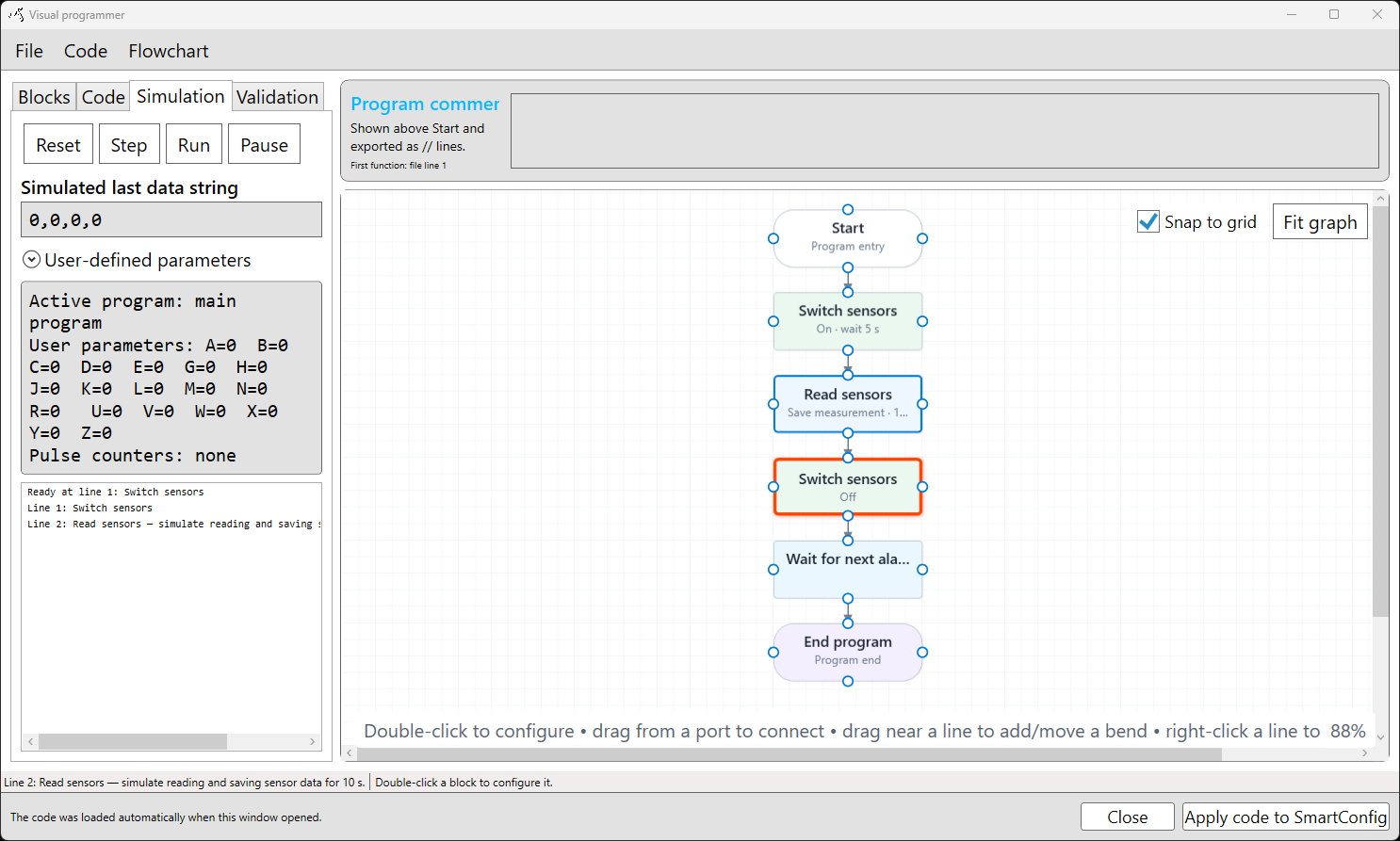
The current action is highlighted on the program canvas. When execution follows a jump or another configured control-flow path, the highlighted path helps you follow the resulting sequence.
Information shown during simulation
- the active main program or subprogram;
- the simulated last-data string;
- user-defined parameter values;
- temporary values and pulse counters;
- the current line and action;
- formula inputs and the formula result;
- messages describing executed actions; and
- the execution history.
Use the simulated last-data string to test formulas that read selected sensor-data positions. Set user-defined parameters before stepping through actions that use them. A formula error or invalid configuration is reported in the simulation message instead of producing a usable calculated value.
Suggested workflow
- Open Simulation and select Reset.
- Enter suitable simulated input data and review the displayed user-defined parameters.
- Select Step to confirm the initial sequence and inspect configured values.
- Step through formulas, comparisons, jumps, and subprogram activation individually.
- Select Run to review the overall sequence, then select Pause when a loop or long-running sequence needs inspection.
- Review the execution messages and runtime values before applying the program.
Programs containing loops may continue running until you select Pause or Reset. Simulation verifies program logic only. It does not confirm the physical behaviour of sensors, modules, outputs, telemetry, wiring, power supplies, or the SmartSampler2 installation.
After simulation, review the applicable SmartSampler2 setup and maintenance guidance before operating the equipment. See SmartSampler2 Diagnostics & Maintenance for basic hardware checks.
Related hardware: SmartSampler2 hardware reference.