
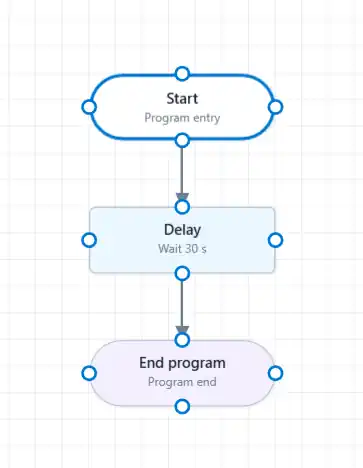
This first program waits for 30 seconds and then ends. It demonstrates how to add, configure, and connect actions on the canvas.
- Open the Visual Programmer. A new program begins with the Start block.
- In the Blocks tab, find F3 – Delay and drag it onto the canvas below the Start block.
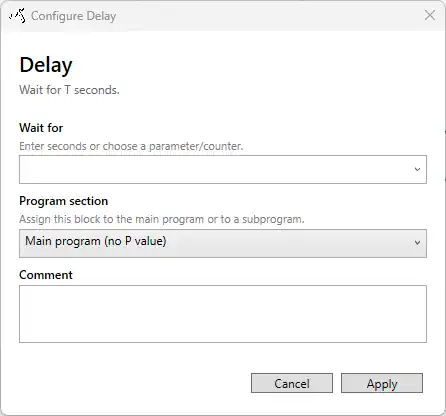
- The configuration window opens automatically. Under Wait for, enter or select
30seconds. Leave Program section set to Main program (no P value). A comment can be entered to describe the purpose of the action. Select Apply to add the configured action.
- Drag F1 – End program from the Blocks tab onto the canvas below the Delay block. Retain the main-program setting and apply the action.
- To connect the blocks, drag from the lower connection point of Start to the upper connection point of Delay.
- Connect the lower connection point of Delay to the upper connection point of End program.
- The arrows show the order in which the actions will be executed.
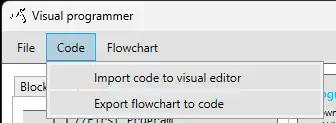
- Open the Code menu and select Export flowchart to code. This generates the program code from the visual workflow.
- Open the Validation tab and confirm that the program contains no errors.
- Select Apply code to SmartConfig to generate the program code and return it to SmartConfig2.1.