
The Code tab displays the SmartSampler2 program code associated with the current visual workflow. Most programs should be created and edited using the flowchart, but advanced users can inspect or modify the generated code directly.
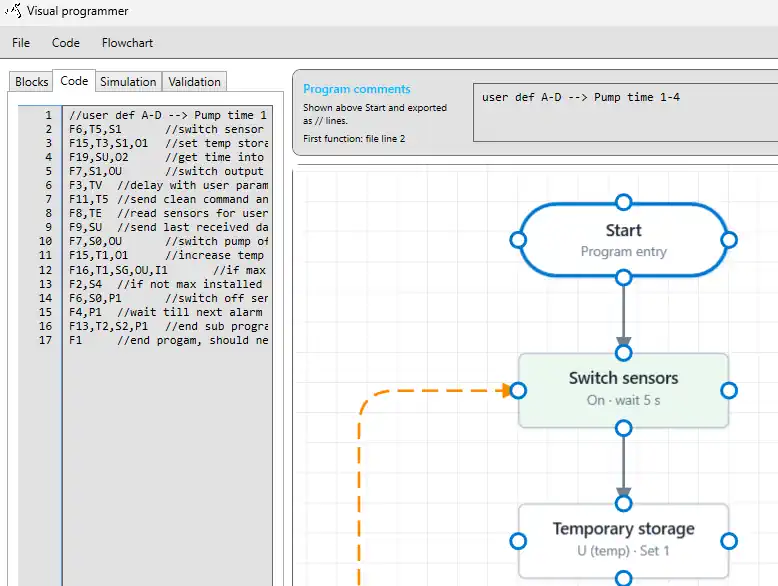
Changes made to the flowchart and changes made in the Code tab are not synchronised automatically.
Use the commands under the Code menu to select the required conversion direction:
- Export flowchart to code: Generates new code from the current visual workflow. Existing manual changes in the Code tab may be replaced.
- Import code to visual editor: Rebuilds the visual workflow from the current code. This is required after editing the code directly.
Importing code replaces the current flowchart and applies a new automatic block layout. Any custom positioning, connection routing, or other visual arrangement is lost. Before importing manually edited code, use File → Save project if the current visual layout may be needed again.
After editing code directly:
- Select Code → Import code to visual editor.
- Review the automatically generated flowchart.
- Confirm that all actions, connections, comments, and program sections were interpreted as intended.
- Test the rebuilt workflow using the Simulation tab.
- Select Code → Export flowchart to code.
- Check the generated code using the Validation tab.
- Select Apply code to SmartConfig when the program is ready.
Direct code editing is intended for advanced use. An incorrect function number, parameter, line target, or program-section value can change the execution flow or prevent the program from operating as intended.