
Programs can be stored as code files, Visual Programmer project files, or in the internal storage of the SmartSampler2. These options store different information.
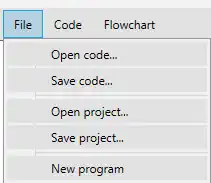
The File menu in the Visual Programmer provides the following commands:
- Open code: Opens a program-code file from the computer and converts it into a visual flowchart. An automatic block layout is applied because a code file does not contain visual positioning information.
- Save code: Saves the generated program code as a file on the computer. The custom block layout is not included.
- Open project: Opens a Visual Programmer project containing the program and its saved visual layout.
- Save project: Saves the complete Visual Programmer project, including the arrangement of blocks and connections. Use this format if the program will be edited visually again later.
- New program: Clears the current workflow and creates a new blank program containing a Start block.
To transfer the current visual program to SmartConfig2.1, select Apply code to SmartConfig. The flowchart is exported to code, the Visual Programmer closes, and the generated code appears in the program-code area of SmartConfig2.1.
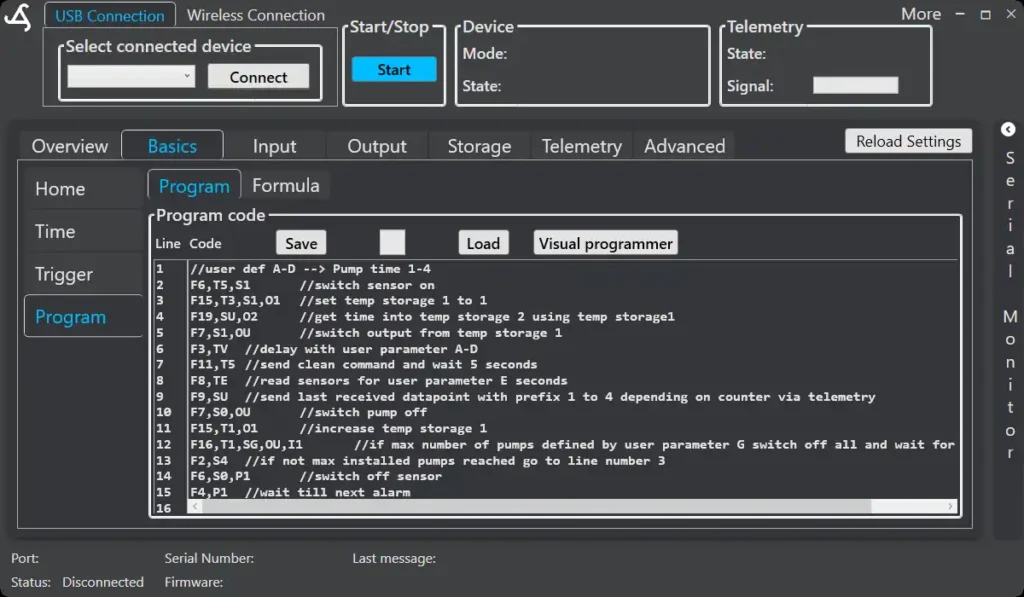
Applying the code does not save it to the SmartSampler2. To store the program in the connected SmartSampler2, select Save above the program-code area in SmartConfig2.1.
To edit a program already stored in a SmartSampler2:
- Connect the SmartSampler2 to SmartConfig2.1.
- Go to Basics → Program.
- Select Load to retrieve the program from the internal SmartSampler2 storage.
- Confirm that the code appears in the program-code area.
- Select Visual programmer. The loaded program is imported automatically and arranged on the canvas.
Programs stored in the SmartSampler2 contain the executable code but not the custom visual layout. To preserve a manually arranged flowchart for later editing, additionally use File → Save project in the Visual Programmer.